


IPTV Player - Smart TV & Live
0.00.00 Reviews
App Specs
- Version
- 1.4
- Updated On
- License
- Free
- Downloads
- 100,000+
- Developer
- Nikita Infotech
- Categories
- Video Players & Editors
- Platform
- Android
Screenshots

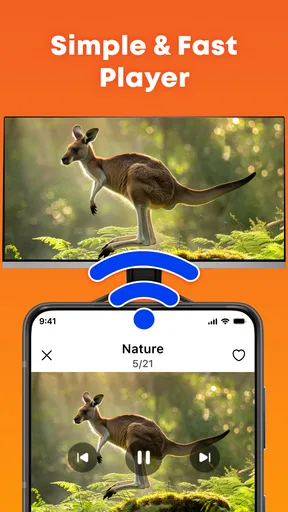
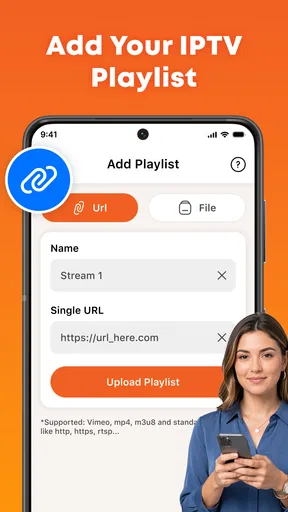
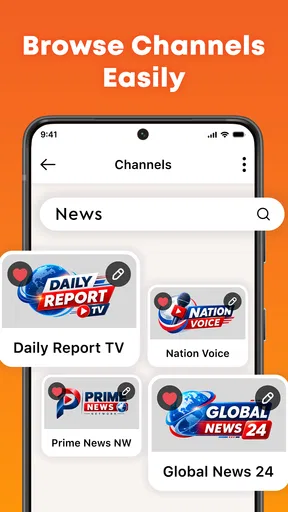
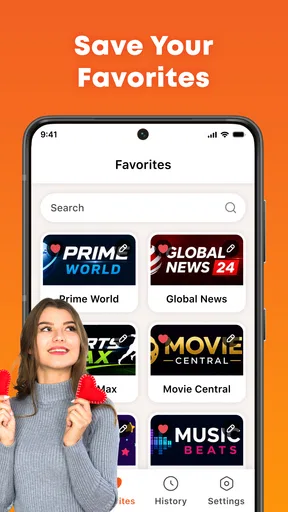
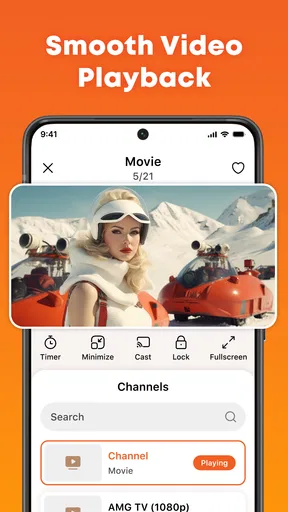
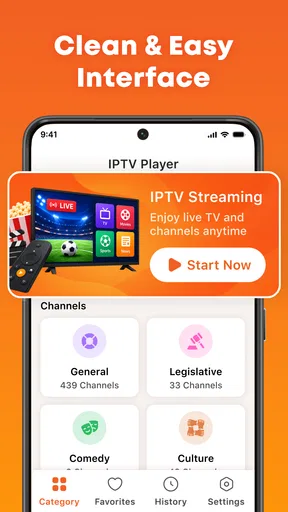
 Analysis by AppCompare
I treat IPTV Player - Smart TV & Live as a viewer for a setup I bring myself, not as a place to discover a ready-made lineup. That difference is the first thing I’d want a friend to understand: it plays and manages IPTV playlists, while the channels and their reliability come from the source behind those playlists. If you already have legitimate IPTV access, a focused player can be useful. If you expect to install an app and immediately browse included channels, this is the wrong starting point.
Before you add a playlist
It helps to decide what you want the app to do before installing it. I’d use it to bring an existing M3U playlist or Xtream account into one viewing setup, then return to that setup for live streams. That is a narrower job than editing video clips or subscribing to a television service, but the focus is valuable when playlist playback is exactly what you need.
One small preparation step can save a lot of confusion: keep your provider’s setup instructions close at hand and check whether you were given an M3U address or Xtream login details. They are distinct ways to connect, so choosing the matching route matters. If a password or address is mistyped, the first impression may be that playback is broken, even though the issue is simply the connection information.
I’d also make sure you know which device will be the main viewing screen. A setup that works on a phone may not feel as convenient on a television, and streams can behave differently on a weak Wi-Fi connection. Testing in the room where you plan to watch is a practical check, not busywork: it tells you whether the everyday setup is ready before you rely on it for a program you do not want to miss.
Getting from a playlist to a watchable setup
As a video player and editor app, it sits in a different corner of the category from tools focused on trimming clips, adding effects, or publishing social videos. Here, the “making” process is really about getting your own viewing setup into usable shape: bring in an M3U playlist or Xtream details, then use the player to access the streams those credentials provide. The app is developed by Nikita Infotech and is called IPTV Player - Smart TV & Live.
The practical starting point is having a legitimate playlist or account ready. M3U is useful when your provider gives you a playlist file or address, while Xtream is a common account-based way to connect to a provider’s service. Those are different entry routes, not a promise that the app supplies content. I’d keep the details from your provider somewhere secure and double-check them before setup; a mistyped address or password can look like a playback problem when the real issue is simply the connection information.
One useful habit is to test with a small, known-good playlist before organizing a large collection. That makes it easier to tell whether a problem comes from the account, the network, or the app’s handling of the playlist. It also avoids spending time arranging channels only to discover that the source itself is unavailable. This is a small but meaningful workflow advantage for anyone setting up IPTV for the first time.
Worth Reading Before You Choose

Flipboard Shows What News Apps Must Do Beyond the Feed

Switching to Android Auto Means Rethinking Your Driving Routine

Google Calendar Makes a Crowded Week Easier to Manage

Ludo King Makes the Most of the Minutes Between Plans

Baby Panda World Brings Quick Play to Modern Phones, but Its Game Library Feels Busy

ESPN’s Live Game View Makes Following Close Games Easier
The app is free, has an Everyone content rating, and has reached over 100,000 installs. Its current version is 1.4, and it requires Android 10 or newer. Those details make it straightforward to judge whether it fits your device before setting aside time for setup. The release date is August 24, 2026, so anyone comparing app history should factor that in rather than assuming it has been around for years.
What the setup process is really asking of you
There is a trade-off built into playlist-based viewing: you get a player that can work with different IPTV sources, but you have to bring the source and know how it is meant to connect. That makes this a better fit for someone comfortable following provider instructions than for a viewer who expects an app to open with a polished channel guide already populated. I would not recommend it as a first stop for someone who has never arranged IPTV access and wants everything bundled in one place.
For a household, I’d first establish that the playlist works on the device and network where it will be watched most often. A channel opening successfully on a phone does not guarantee the same experience on a television or across a weaker Wi-Fi connection. If the app is being used on a shared screen, sorting out access before everyone settles in can prevent the familiar last-minute scramble of searching for a working stream.
Managing channels without turning it into a project
The central appeal is having one place to play and manage the playlists you use, rather than treating each stream as a separate video file. M3U and Xtream support give the app a clear practical focus: it is built around IPTV sources, not around local media libraries or general-purpose video editing. That focus is helpful when your goal is live viewing, but it also means that people seeking playback for a broad range of downloaded formats may prefer a more general media player.
A non-obvious but useful approach is to treat playlist setup like maintaining a small workspace. Keep the provider’s original details intact, and make one change at a time when troubleshooting. If a stream stops working after you have changed several settings or replaced a playlist, it becomes harder to identify the cause. By testing a familiar channel after each change, you can separate a source update from a network hiccup without guessing.
Another practical tip is to avoid assuming that a long channel list is automatically a better one. A playlist may contain entries you never watch, and a crowded list makes everyday browsing feel slower even when the player itself is responsive. If your provider offers a way to keep a focused selection, use it; a compact set of channels for your regular routine is easier to navigate than an all-inclusive list. This is especially useful for someone using IPTV for a few regular programs rather than exploring hundreds of options.
There is also a clear boundary between managing playback and managing the underlying service. The app can act as the player for playlists, but the availability, naming, and reliability of channels ultimately depend on the source. When a particular stream fails while others continue to work, I would check the provider or playlist before concluding that the whole app is broken. That distinction can save time and helps set fair expectations.
Iteration: fixing the right problem
IPTV playback can fail for several reasons, and the first symptom is not always the cause. A channel may be offline, the playlist may have changed, the login details may be wrong, or the network may be struggling. My practical troubleshooting order would be to try another channel from the same source, confirm that the device is online, and then recheck the playlist or account information. If only one stream fails, replacing the entire setup is unlikely to be the best first move.
For everyday viewing, this distinction matters more than it might sound. Imagine turning on a match or a news program after work and finding that one channel will not load. If another channel plays normally, the problem is probably limited to that stream or its listing; if nothing plays, it is more sensible to investigate the connection and account. Having a simple diagnostic routine keeps the app from becoming a frustrating cycle of reinstalling and re-entering details.
The main limitation is that playlist-based players rely on information supplied from outside the app. That gives you flexibility in choosing a source, but it also means there is no single guarantee of channel quality or consistency. People who want a predictable, provider-supported experience with customer service for the channels themselves may be better served by a conventional subscription TV app. IPTV Player is more suitable when you already understand the source you want to use and need a player to work with it.
I would also be cautious about treating this as a creator tool in the usual editing sense. Despite the category’s broad association with video tools, the app’s purpose is viewing and playlist management, not editing footage, creating a program, or exporting a finished video. If your creative workflow involves cutting clips or handing off a rendered file, an editor designed for those tasks is the right choice. Here, the “handoff” is simply making sure your playlist and account details are ready on the device you plan to watch from.
Everyday use and the handoff between devices
A realistic use case is keeping a personal IPTV setup available for a relaxed evening at home: you have already obtained the playlist from a source you trust, tested it, and want a dedicated place to browse and play its streams. Another is using the app while travelling, provided your provider allows access and the connection is reliable enough. In both cases, the most useful preparation happens before viewing: verify the playlist, keep your account information accessible, and test the streams you rely on most.
When moving from one device to another, I would not assume that a playlist or login automatically transfers. The safer plan is to keep the provider’s setup instructions available and enter the details on the device you intend to use, following the provider’s terms. That may feel less seamless than a service tied to a single account and synced library, but it avoids confusing app behavior with a transfer feature that should not be taken for granted.
Compared with a general video player, this app is more directly aimed at IPTV playlist use. Compared with a streaming service’s own app, it is less of an all-in-one destination because the channel source comes from elsewhere. That middle ground is the point: a dedicated player can be convenient for someone juggling an existing IPTV setup, but it cannot replace the source’s reliability, support, or content rights. I would choose between those options based on whether you value control over your playlists or prefer a managed service with a simpler sign-in-and-watch routine.
Who I’d recommend it to
I’d suggest trying it if you already have M3U or Xtream access, want an app focused on playing those streams, and are comfortable doing a little setup yourself. It is also a reasonable option for someone who wants to keep IPTV viewing separate from a phone’s usual video and social apps. Its free price lowers the barrier to trying it, while the Android 10 minimum requirement gives a clear compatibility check before installation.
I’d skip it if you expect channels to be included, need help choosing an IPTV provider, or want a conventional live-TV subscription with a single company responsible for both the service and playback. I’d also look elsewhere if your main purpose is editing videos, organizing a large offline film library, or casting and syncing media through a feature set you specifically rely on. Those are different jobs, and the app’s playlist-centered purpose should not be mistaken for a broader media suite.
A sensible routine for regular viewing
For a weekday evening, I’d set things up before the program starts: confirm that the provider’s account details are current, open a channel I know works, and check playback on the screen I intend to use. If the playlist includes many entries, I’d note the few channels I return to most often rather than browsing the full list under time pressure. That routine does not make a weak source stronger, but it helps me spot whether a last-minute issue is new or something the setup already had.
When deciding whether to keep using the app, I’d judge it by the part it can reasonably control: whether it provides a convenient place to connect to and play the playlist I already have. If the source repeatedly fails, I would first contact or review that provider rather than expecting a different player to repair unavailable streams. If the source is dependable but the viewing workflow feels too hands-on, a conventional subscription app is likely the better trade-off, even if it gives me less choice over how channels are supplied.
Where it fits in a media setup
This is a useful distinction when comparing options in the video category. A general-purpose player is the more sensible choice for downloaded films and varied local files; a video editor is built for making and exporting clips; and a provider’s own television app usually offers a more managed route to its channels. IPTV Player occupies the playlist-player role between those choices. Its value is not that it replaces every tool, but that it can keep an existing IPTV routine separate and focused.
If I were helping someone decide whether to install it, I’d ask one question first: do they already have a source and want a player, or are they still looking for a service that supplies programming? In the first case, this app’s purpose aligns with the need. In the second, the person should choose a legitimate provider first and use its instructions to determine whether this player is appropriate. Keeping those two decisions separate avoids mistaking playlist compatibility for a promise of channels or service support.
My overall view is that IPTV Player - Smart TV & Live makes the most sense as a practical, focused player for people who already know what they want to watch and have a compatible source. Its M3U and Xtream support gives it a clear role, and its straightforward scope is preferable to pretending it can solve issues that belong to the provider or network. The trade-off is that setup and reliability remain partly in your hands. If you want control over an existing IPTV playlist rather than a bundled TV service, it is worth considering; if you want effortless, supported access to channels from the moment you open an app, choose a different kind of service.
Pros
- Supports playlists
- making it easy to organize channels from your IPTV provider.
- Can be used to watch live TV on a compatible device.
- A familiar channel-list layout makes browsing straightforward.
- Useful for viewers who want one app for multiple IPTV playlists.
- Offers an alternative to switching between provider-specific apps.
Cons
- Does not provide TV channels or subscriptions; you need your own IPTV source.
- Channel availability and stream quality depend on your IPTV provider.
- Some playlists may not load or display correctly.
- Features and compatibility can vary across devices and app versions.
- Use only authorized IPTV services to avoid copyright and security risks.
FAQs for IPTV Player - Smart TV & Live
What is IPTV Player - Smart TV & Live, and what can I watch with it?
IPTV Player - Smart TV & Live is a media player for viewing IPTV streams, typically supplied as a playlist or service by the user. The app itself is not necessarily a television provider and may not include channels, films, or on-demand programmes. What you can watch depends on the playlists and access details you add, as well as the rights and availability of that content in your region.
Does IPTV Player - Smart TV & Live include free live TV channels?
Do not assume that installing the app gives you free access to live channels. IPTV players generally provide tools for loading and playing compatible streams, while users obtain playlists or subscriptions separately. Before paying a provider, check its channel list, supported devices, trial or refund terms, and licensing. Avoid services that promise premium content at unusually low prices or cannot explain their rights to distribute it.
How do I add an IPTV playlist to the app?
The exact steps can vary by app version, but IPTV players commonly let you add a playlist using a URL, a file, or account details supplied by a provider. Use only information from a service you trust, and check the app’s on-screen instructions for supported formats. If a playlist fails to load, verify the address, account status, internet connection, and format before concluding that the player is at fault.
Can I use IPTV Player - Smart TV & Live on a television or multiple devices?
Device compatibility and casting or TV support can vary across Android and iOS versions, so check the app listing and its settings before downloading. A phone or tablet app may not be available as a native app for every smart TV, and casting support should not be assumed. Also confirm whether your IPTV provider permits multiple simultaneous connections, since that limit is usually set by the provider rather than the player.
Is IPTV Player - Smart TV & Live safe, legal, and free to use?
Safety, legality, and cost depend on the app’s current listing, permissions, pricing, and the streams you choose to play. Download it from an official app store, review its privacy information and any in-app purchases, and avoid entering credentials on unfamiliar pages. Use playlists only when you are authorized to access their content; the player’s availability does not establish that a channel or stream is licensed.


